Please Subscribe our Youtube Channel For more Videos
Friday, 29 December 2017

Break the Excel Sheet Password Without any software
Please Subscribe our Youtube Channel For more Videos
Monday, 5 October 2015
Extract text Based on Font Color from a Cell in Excel
'VBA: Extract text based on font color
Function GetColorText(rng As Range) As String
Dim x As String
Dim y As String
Dim i As Long
y = rng.Text
For i = 1 To VBA.Len(y)
If rng.Characters(i, 1).Font.Color = vbRed Then
x = x & VBA.Mid(y, i, 1)
End If
Next
GetColorText = x
End Function
Type this Formula =GetColorText(A1) (A1 indicates the cell you want to extract text from), press Enter key to get the needed text, then drag autofill handle to fill the formula to the range you want.
Now you can see all red text are extracted.
 >
>
Function GetColorText(rng As Range) As String
Dim x As String
Dim y As String
Dim i As Long
y = rng.Text
For i = 1 To VBA.Len(y)
If rng.Characters(i, 1).Font.Color = vbRed Then
x = x & VBA.Mid(y, i, 1)
End If
Next
GetColorText = x
End Function
Type this Formula =GetColorText(A1) (A1 indicates the cell you want to extract text from), press Enter key to get the needed text, then drag autofill handle to fill the formula to the range you want.
Now you can see all red text are extracted.
 >
>Tuesday, 29 September 2015
Excel VBA Macro To Change Border Line Styles
Excel VBA Macro To Change Border Styles
Sub Borders()
Sheets.Add
'Borders
Range("B5:e15").Borders.LineStyle = xlContinuous
Range("B5:e15").Borders.LineStyle = xlDot
Range("B5:e15").Borders.LineStyle = xlThick
Range("B5:e15").Borders.LineStyle = xlSingle
Range("B5:e15").Borders.LineStyle = xlDouble
Range("B5:e15").Borders.LineStyle = xlNone
End Sub
Friday, 25 September 2015
EXCEL Macro(VBA) Code to Sort the Data
EXCEL Macro(VBA) Code to Sort the Data Based on One Particular Column
First Enter the large data in Excel sheet then Execute this Macro
Sub Sorting()
Dim X As Integer
X = InputBox("Enter The SortBase Column:")
Columns(X).Select
ActiveWorkbook.ActiveSheet.Sort.SortFields.Clear
ActiveWorkbook.ActiveSheet.Sort.SortFields.Add Key:=Cells(1, X), _
SortOn:=xlSortOnValues,
Order:=xlAscending,
DataOption:=xlSortNormal
With ActiveWorkbook.ActiveSheet.Sort
.SetRange Range("A1:H300")
.Header = xlYes
.MatchCase = False
.Orientation = xlTopToBottom
.SortMethod = xlPinYin
.Apply
End With
End Sub
First Enter the large data in Excel sheet then Execute this Macro
Sub Sorting()
Dim X As Integer
X = InputBox("Enter The SortBase Column:")
Columns(X).Select
ActiveWorkbook.ActiveSheet.Sort.SortFields.Clear
ActiveWorkbook.ActiveSheet.Sort.SortFields.Add Key:=Cells(1, X), _
SortOn:=xlSortOnValues,
Order:=xlAscending,
DataOption:=xlSortNormal
With ActiveWorkbook.ActiveSheet.Sort
.SetRange Range("A1:H300")
.Header = xlYes
.MatchCase = False
.Orientation = xlTopToBottom
.SortMethod = xlPinYin
.Apply
End With
End Sub
Thursday, 10 September 2015
Monday, 29 June 2015
Get Day Name From Date

TEXT(B4,"ddd"):
If you need to get the day name (i.e. Monday, Tuesday, etc.) from a date, there are several options depending on your needs.
Do you just want to display the day name?
"ddd"  // "Wed"
"dddd" // "Wednesday"
Excel will display only the day name, but it will leave the date value intact.
Do you want to convert the date into a day name?
If you want to convert the date value to a text value, you can use the TEXT function with a custom number format like "ddd". The formula looks like this:
=TEXT(B4,"DDD")
The TEXT function converts values to text using the number format that you provide. Note that date is lost in the conversion, only the text for the day name remains.
Monday, 22 June 2015
MAIL MERGE
Mail Merge is a useful tool that allows you to produce multiple letters, labels, envelopes, name tags, and more using information stored in a list, database, or spreadsheet. When performing a Mail Merge, you will need a Word document(you can start with an existing one or create a new one) and a recipient list, which is typically an Excel workbook.
To use Mail Merge:
To use Mail Merge:
- Open an existing Word document, or create a new one.
- From the Mailings tab, click the Start Mail Merge command and select Step by Step Mail Merge Wizard from the drop-down menu.

The Mail Merge pane appears and will guide you through the six main steps to complete a merge. The following example demonstrates how to create a form letter and merge the letter with a recipient list.
Friday, 19 June 2015
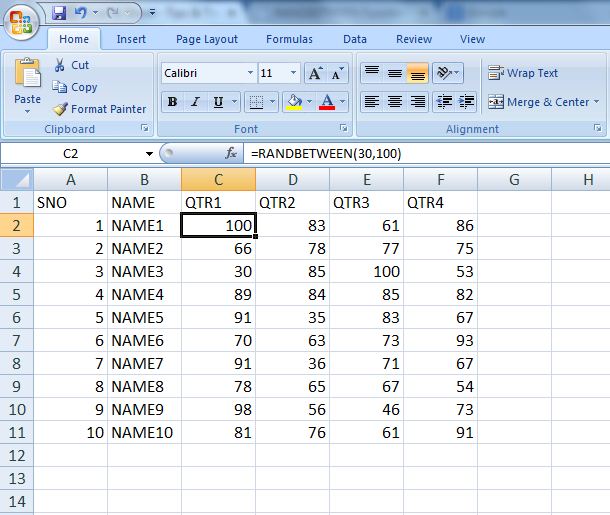
RANDBETWEEN Function in Excel
Returns a Random Number within a specified Range (bottom,top). It returns an integer between any two defined values – such as one and ten.
RANDBETWEEN Function Syntax
The syntax for RANDBETWEEN function is:
=RANDBETWEEN( bottom, top )
Bottom – The lower number of the range and the smallest integer value that the function will return.
Top – The higher number of the range and the largest integer value that the function will return.
RANDBETWEEN Function Example
Have a look at RANDBETWEEN function examples
Sunday, 7 June 2015
Macro Code for Displaying the Names of Worksheets One by One.
Using Macro Code Displaying the Names of Worksheets in a Workbook.
After executing this code it displaying all worksheets names one by one.
MACRO CODE:
Sub for_each()
Dim sh As Worksheet
For Each sh In Worksheets 'For Each Loop
MsgBox sh.Name 'Msgbox diplaying the Names
Next sh
End Sub
F5 - Execute the Program

Saturday, 6 June 2015
How to find number of years Between Two Dates
Finding No.of Years Between Two Dates
Here We are using Datedif( ) Function to finding Difference between Two Dates.

If we want to find No.of Months in between two dates then.
=DATEDIF(D2,B2,"M")
And For No.of Days
=DATEDIF(D2,B2,"D")
By using this function we can find Months in a year, Days in a Month also.
=DATEDIF(D2,B2,"YM") -> Remaining Months After Years.
=DATEDIF(D2,B2,"MD") -> Remaining Days After Months
Tuesday, 2 June 2015

EXCEL MAP - REPT() Function Use
==============================
Repeats text a given number of times. Use REPT to fill a cell with a number of instances of a text string.
For More Excel Updates www.facebook.com/groups/EXCELMAP
==============================
Repeats text a given number of times. Use REPT to fill a cell with a number of instances of a text string.
For More Excel Updates www.facebook.com/groups/EXCELMAP
 |
Monday, 18 May 2015

Friday, 16 January 2015
Welcome
Welcome To EXCEL MAP
-----------------------------------
We are here for giving a Knowledge on Excel. This group sharing Basic and Advanced Excel, Macros and VBA Tips and Tricks.
-----------------------------------
We are here for giving a Knowledge on Excel. This group sharing Basic and Advanced Excel, Macros and VBA Tips and Tricks.
Subscribe to:
Posts (Atom)