Showing posts with label EXCEL BASICS. Show all posts

Monday, 29 June 2015

Get Day Name From Date


TEXT(B4,"ddd"): 
If you need to get the day name (i.e. Monday, Tuesday, etc.) from a date, there are several options depending on your needs.


Do you just want to display the day name?

"ddd"  // "Wed"
"dddd" // "Wednesday"
Excel will display only the day name, but it will leave the date value intact.

Do you want to convert the date into a day name?

If you want to convert the date value to a text value, you can use the TEXT function with a custom number format like "ddd". The formula looks like this:

=TEXT(B4,"DDD")
The TEXT function converts values to text using the number format that you provide. Note that date is lost in the conversion, only the text for the day name remains.

Friday, 19 June 2015

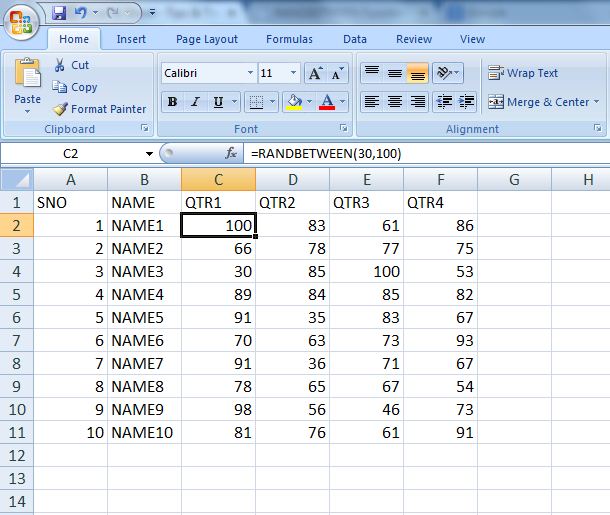
RANDBETWEEN Function in Excel

Returns a Random Number within a specified  Range (bottom,top). It returns an integer between any two defined values – such as one and ten.

RANDBETWEEN Function Syntax

The syntax for RANDBETWEEN function is:
=RANDBETWEEN( bottom, top )
Bottom – The lower number of the range and the smallest integer value that the function will return.
Top – The higher number of the range and the largest integer value that the function will return.

RANDBETWEEN Function Example

Have a look at RANDBETWEEN function examples


Saturday, 6 June 2015

How to find number of years Between Two Dates

Finding No.of Years Between Two Dates


Here We are using Datedif( ) Function to finding Difference between Two Dates.


If we want to find No.of Months in between two dates then.

=DATEDIF(D2,B2,"M")

And For No.of Days

=DATEDIF(D2,B2,"D")

By using this function we can find Months in a year, Days in a Month also.

=DATEDIF(D2,B2,"YM")     -> Remaining Months After Years.

=DATEDIF(D2,B2,"MD")     -> Remaining Days After Months