Monday, 22 June 2015

MAIL MERGE

        Mail Merge is a useful tool that allows you to produce multiple letters, labels, envelopes, name tags, and more using information stored in a list, database, or spreadsheet. When performing a Mail Merge, you will need a Word document(you can start with an existing one or create a new one) and a recipient list, which is typically an Excel workbook.

To use Mail Merge:
  1. Open an existing Word document, or create a new one.
  2. From the Mailings tab, click the Start Mail Merge command and select Step by Step Mail Merge Wizard from the drop-down menu.

  3. Screenshot of Word 2013


       The Mail Merge pane appears and will guide you through the six main steps to complete a merge. The following example demonstrates how to create a form letter and merge the letter with a recipient list.


Friday, 19 June 2015

RANDBETWEEN Function in Excel

Returns a Random Number within a specified  Range (bottom,top). It returns an integer between any two defined values – such as one and ten.

RANDBETWEEN Function Syntax

The syntax for RANDBETWEEN function is:
=RANDBETWEEN( bottom, top )
Bottom – The lower number of the range and the smallest integer value that the function will return.
Top – The higher number of the range and the largest integer value that the function will return.

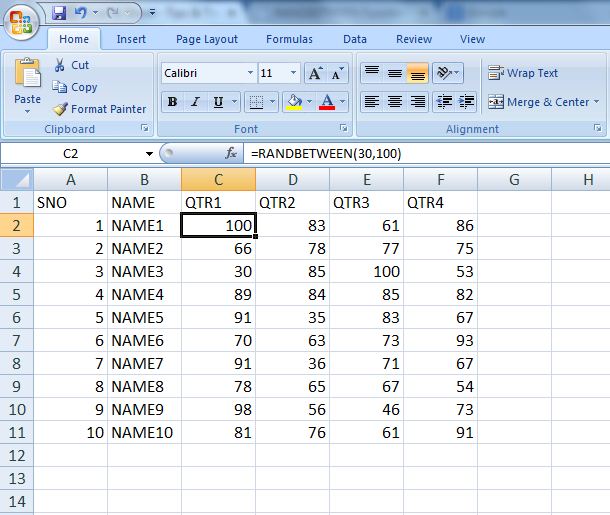
RANDBETWEEN Function Example

Have a look at RANDBETWEEN function examples


Sunday, 7 June 2015

Macro Code for Displaying the Names of Worksheets One by One.


Using Macro Code Displaying the Names of Worksheets in a Workbook.

After executing this code it displaying all worksheets names one by one.

MACRO CODE:

Sub for_each()                  
Dim sh As Worksheet
For Each sh In Worksheets      'For Each Loop
MsgBox sh.Name                    'Msgbox diplaying the Names
Next sh
End Sub


F5 - Execute the Program

Saturday, 6 June 2015

How to find number of years Between Two Dates

Finding No.of Years Between Two Dates


Here We are using Datedif( ) Function to finding Difference between Two Dates.


If we want to find No.of Months in between two dates then.

=DATEDIF(D2,B2,"M")

And For No.of Days

=DATEDIF(D2,B2,"D")

By using this function we can find Months in a year, Days in a Month also.

=DATEDIF(D2,B2,"YM")     -> Remaining Months After Years.

=DATEDIF(D2,B2,"MD")     -> Remaining Days After Months 

Tuesday, 2 June 2015

EXCEL MAP - Excel and Macros TIPS
===============================
MATCH - Finding the position of a Given array items.


EXCEL MAP - REPT() Function Use
==============================
Repeats text a given number of times. Use REPT to fill a cell with a number of instances of a text string.
For More Excel Updates www.facebook.com/groups/EXCELMAP